How to Audit Your Shopify Store's Theme and App Stack Before Improving Post-Purchase Support
Audit your Shopify theme, apps, tracking, returns, cancellations, and support workflows before adding another post-purchase tool.
A Shopify app stack audit is one of the fastest ways to find hidden friction in your post-purchase experience. Before you add another tracking app, returns tool, chatbot, or helpdesk workflow, it is worth checking what your store already runs, what overlaps, and where customers still get stuck.
Most Shopify teams do this backward. They wait until support tickets pile up, then add another app to solve the loudest problem. That can work for a while, but it often creates a messy stack: one app for tracking, one app for returns, one for email, one for chat, and a handful of theme customizations nobody remembers installing.
This guide walks through a practical Shopify app stack audit focused on post-purchase support: order tracking, returns, cancellations, shipping communication, and customer support handoff.
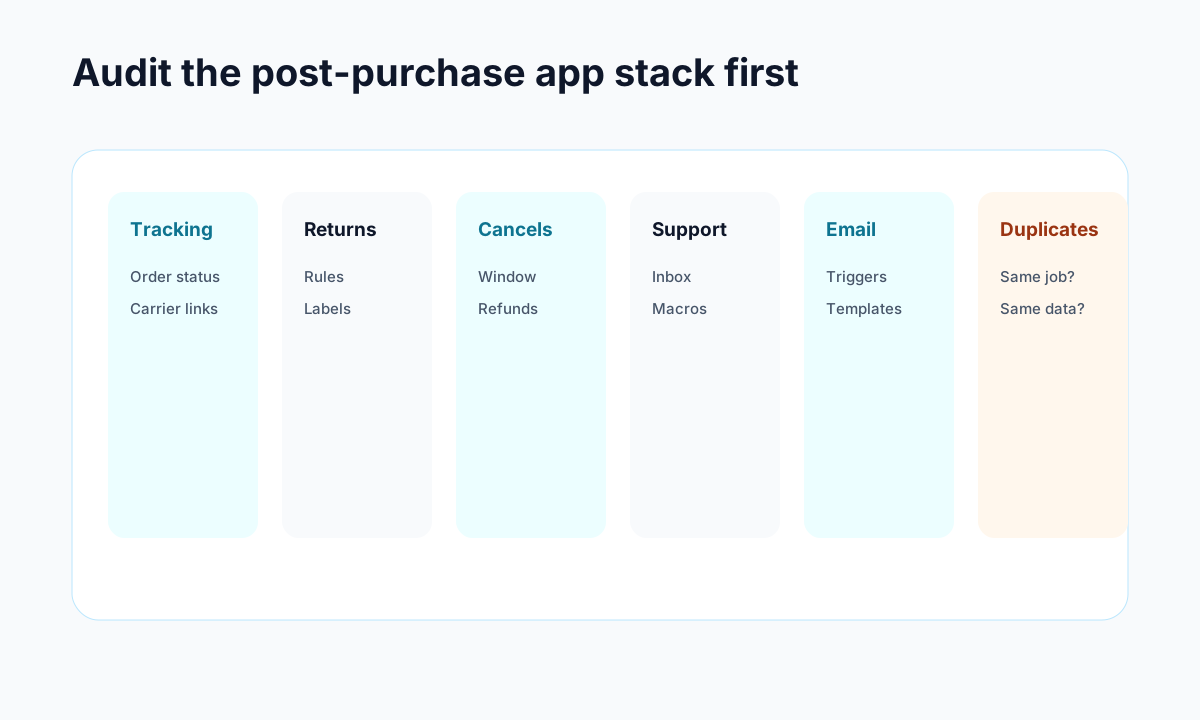
<!-- trexa-visual-elements:start -->Visual guide: app stack audit board
Before adding another app, map which tool owns each post-purchase job and where work is duplicated.
| Audit area | Question to ask | Red flag |
|---|---|---|
| Tracking | Does the page reduce questions or only display carrier status? | Customers still email for updates. |
| Returns and cancellations | Are these connected to support context? | Agents manually check multiple apps. |
| Email and support | Which system sends the customer back to self-service? | Every email points to the inbox. |
Helpful reference:
<!-- trexa-visual-elements:end -->Why a Shopify App Stack Audit Matters Before Post-Purchase Changes
<!-- trexa-section-visual:comparison -->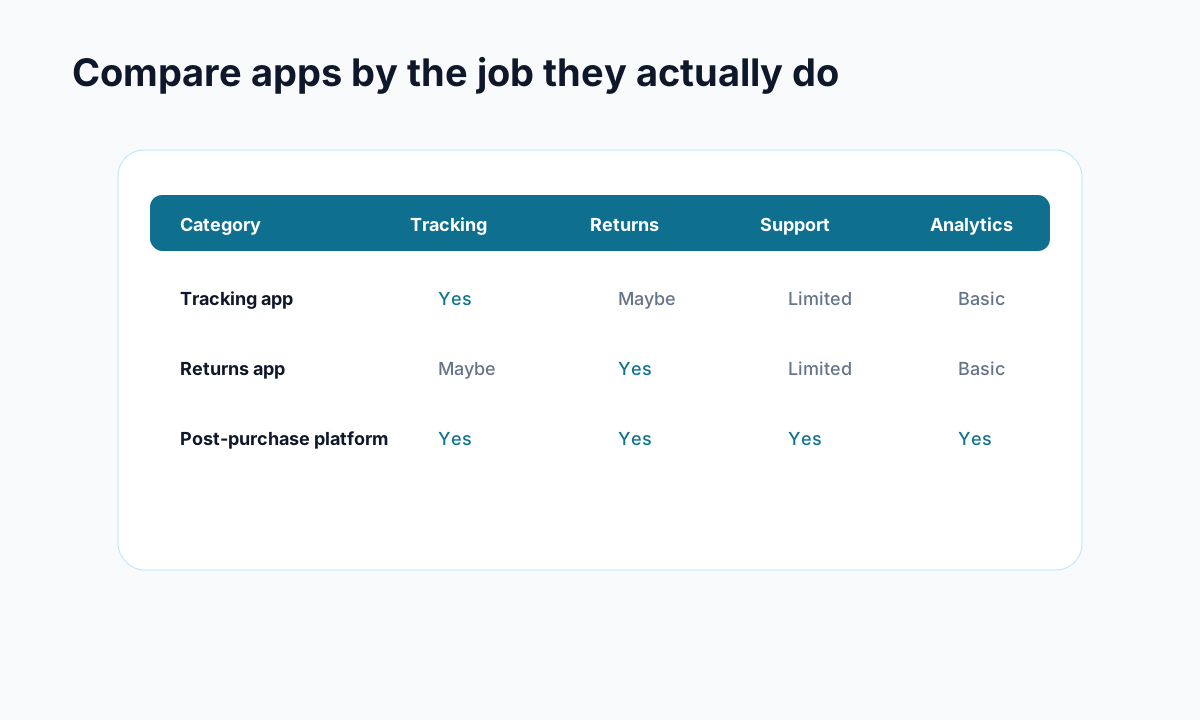
Example: compare apps by the operational jobs they cover, not by feature-page language.
The post-purchase experience touches more systems than most merchants realize. A customer might start on the order confirmation page, click into a tracking email, land on a carrier page, open a return request, and then contact support when the answer is not clear.
If each step is powered by a separate tool, the customer sees the gaps.
A Shopify app stack audit helps you answer five basic questions:
- Which apps are customer-facing after checkout?
- Which apps send emails or SMS messages?
- Which apps modify the theme or storefront experience?
- Which apps overlap with each other?
- Which support questions still require a human response?
That last question matters most. The goal is not to have fewer apps for the sake of it. The goal is to remove confusion that creates avoidable tickets.
For example, a merchant might have a branded order tracking page, but still send customers to carrier tracking links in shipping emails. Another store might have a returns app, but no clear path from the tracking page to the return request flow. A support team might have AI reply drafts in a helpdesk, but customers still have to email first before getting a simple delivery answer.
Those are app stack problems, not just support problems.
Step 1: Identify Your Shopify Theme and Visible Apps
Start with the storefront. Your theme and visible app scripts shape what customers actually experience.
A simple way to begin is to use a tool like Shopify Theme Detector to check what theme and publicly visible Shopify apps a store is using. This is useful for your own store, but it is also useful when reviewing competitors or brands with a customer experience you like.
You are not trying to copy another store blindly. You are looking for patterns:
- Are they using a lightweight theme or a heavily customized one?
- Do they rely on separate apps for reviews, subscriptions, tracking, returns, and chat?
- Does the storefront feel fast and consistent, or stitched together?
- Which apps appear to support conversion before checkout versus support after checkout?
Detection tools will not catch every private integration or backend workflow, but they give you a quick external view. That matters because customers only experience what is visible to them.
After that, compare the result against your Shopify admin. Look for apps that are still installed but no longer used. Old apps can leave theme code, app embeds, snippets, or tracking scripts behind. Even when they do not break anything, they can slow pages down or make debugging harder later.
Step 2: Map Every Post-Purchase Touchpoint
Once you know what is installed, map the customer journey after checkout.
Use a real order if possible. Walk through the experience from the customer's point of view:
- Order confirmation page
- Order confirmation email
- Shipping confirmation email
- Tracking page
- Delivery exception or delay message
- Return or exchange request
- Cancellation request
- Support contact flow
For each step, write down the app or system responsible. If the answer is "not sure," that is a finding.
This is where many Shopify stores discover fragmentation. Tracking may be handled by one app, return requests by another, email notifications by Shopify or Klaviyo, and support responses by Gmail, Gorgias, Zendesk, or a manual inbox. None of those tools are automatically wrong. The issue is whether they work together from the customer's perspective.
If you want a deeper checklist for this part, Trexa's guide to Shopify post-purchase experience fixes covers the common points where customers lose confidence after checkout.
Step 3: Find Duplicate App Jobs
The easiest cleanup wins usually come from duplicate jobs.
Look for apps that do the same thing in slightly different ways:
- Two apps sending shipping updates
- A helpdesk widget and an AI chat widget both answering order questions
- A tracking page app and a separate order lookup page
- A returns app and a manual return form
- Email automation that repeats the same information customers already see elsewhere
Duplicates create two kinds of problems. First, they can confuse customers. If one email says the order is delayed and another says it is on schedule, the customer will contact support. Second, duplicates make your team slower because nobody knows which system is the source of truth.
For post-purchase support, your source of truth should be clear:
- Order and fulfillment status should come from Shopify and your tracking source.
- Return eligibility should follow your actual return policy.
- Cancellation options should reflect fulfillment status.
- Support replies should include order context, not generic macros.
If an app cannot use the right source of truth, it may still look polished while creating more work behind the scenes.
Step 4: Check Whether Tracking Reduces Tickets or Just Displays Status
<!-- trexa-section-visual:tracking -->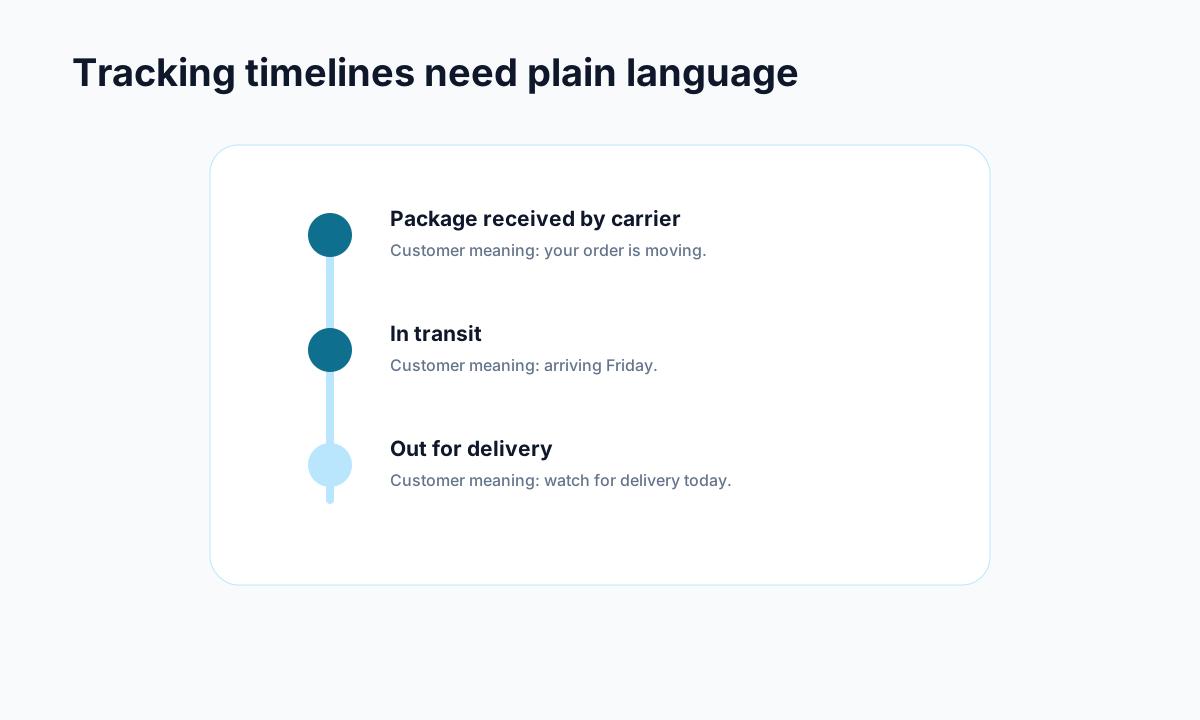
Example: carrier events become useful when they are translated into plain customer language.
Order tracking is usually the first post-purchase app category merchants review. That makes sense. "Where is my order?" questions are repetitive, and a clear tracking page can deflect a meaningful chunk of them.
But not all tracking pages reduce support tickets equally.
During your Shopify app stack audit, ask:
- Does the tracking page live on your brand, or does it send customers to a carrier site?
- Can customers understand what the current status means?
- Are delay, exception, and failed delivery states explained clearly?
- Can customers take the next step from the same place?
- Is there a path to returns, cancellations, or support when tracking alone is not enough?
A branded page is a good start, but a static status page still leaves gaps. If the customer sees "in transit" for six days with no explanation, they may still email you. If they want to cancel before fulfillment or start a return after delivery, they may still hunt through your footer.
That is why post-purchase tools are moving beyond plain tracking. Some tools now combine branded tracking pages with self-serve support actions and AI assistance. Tools like Trexa, for example, are built around the idea that the tracking page should answer common order questions and route customers to the right next step, not just show a shipment timeline.
For a more focused breakdown, read this guide on how to choose a Shopify order tracking app.
Step 5: Audit Returns and Cancellations Together
<!-- trexa-section-visual:returns -->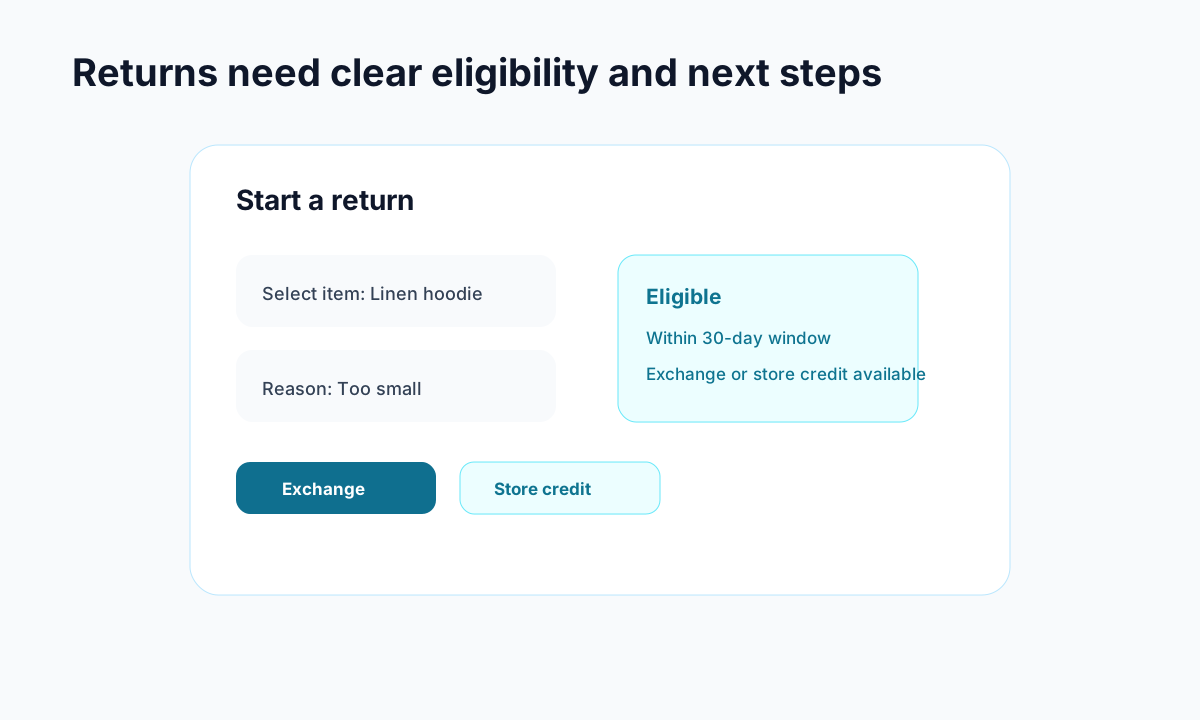
Example: a return flow should show eligibility and resolution options before a customer emails support.
Returns and cancellations are often treated as separate workflows, but customers do not think that way. They just want to change what happens after an order.
During the audit, check:
- Can customers cancel before fulfillment?
- Does your store explain when cancellation is no longer possible?
- Can customers start a return without emailing support?
- Are return reasons structured enough to help your team spot product issues?
- Are edge cases routed to a human instead of auto-approved blindly?
This is where app overlap can get expensive. A returns app may handle post-delivery returns well but do nothing for pre-fulfillment cancellations. A helpdesk may handle both manually, but only after a customer submits a ticket. A tracking app may show delivery status but not connect to either workflow.
The cleanest setup is usually a single post-purchase path where customers can see order status, understand eligibility, and choose the right action. If a request needs human review, it should arrive with context: order number, items, reason, policy match, and prior conversation history.
This also gives your team better data. Instead of counting tickets alone, you can measure how many customers self-served, how many requests needed approval, and which policy questions caused confusion.
Step 6: Remove Apps Only After Checking Dependencies
Do not uninstall apps casually. A Shopify app stack audit should reduce risk, not create it.
Before removing anything, check:
- Theme app embeds
- Liquid snippets or app blocks
- Checkout, customer account, or order status customizations
- Email templates
- Webhooks
- Pixels and analytics events
- Zapier, Make, or custom automation dependencies
If an app sends customer-facing emails, pause or replace those flows before uninstalling it. If an app injects code into your theme, duplicate your theme and test the removal first. If an app powers a key page, make sure redirects or replacement links are ready.
Also watch for hidden operational dependencies. Sometimes an app is no longer visible to customers but still powers reports, exports, or internal workflows. Removing it without checking can break a process your team only notices at the end of the month.
What a Clean Post-Purchase App Stack Looks Like
A clean stack does not mean a minimal stack. It means every tool has a job.
For most Shopify stores, the target setup looks like this:
- A fast theme with only necessary customer-facing scripts
- Branded order tracking that keeps customers on your site
- Clear shipping emails that link back to your tracking experience
- Self-serve returns and cancellations with policy-aware rules
- Support handoff when automation is not enough
- Analytics that show which tickets were avoided
The key is cohesion. Customers should not feel like they are being passed between disconnected tools. Your team should not need to open five tabs to understand one order.
If your tracking, returns, cancellations, and support tools all point in different directions, start by fixing the highest-volume question first. For many stores, that is WISMO. This guide on branded order tracking pages explains why keeping customers away from carrier pages can reduce confusion and protect the brand experience.
Final Checklist for Your Shopify App Stack Audit
Use this quick checklist before you add or remove another post-purchase tool:
- Identify your theme and visible apps.
- List every customer-facing post-purchase touchpoint.
- Mark which app owns each touchpoint.
- Find duplicate email, tracking, chat, return, or support workflows.
- Confirm the source of truth for order status and policy rules.
- Test the journey with a real order.
- Remove unused apps only after checking theme code and automations.
- Replace fragmented workflows with one clear customer path.
A Shopify app stack audit is not busywork. It is how you avoid solving one support problem while creating three smaller ones.
Start with visibility, then simplify the customer journey. Once you know what your theme and apps are already doing, it becomes much easier to decide whether you need a new app, a better workflow, or just a cleaner connection between the tools you already have.
Ready to reduce your support tickets?
Trexa gives your Shopify store AI-powered order tracking, automated support, and self-serve returns. Start free with 10 orders/month.
Start FreeExplore related Trexa pages